Google Business Profile for Doctors: The Complete US Setup Guide
Setting up a Google Business Profile for a medical practice means claiming your listing on Google, verifying it as the legitimate owner, and filling in the details patients and Google both use to identify your practice: your specialty category, hours, services, and location. It is free, it takes about 30 to 60 minutes of focused work, and it is the single most important listing a US doctor controls online.
Most doctors already have a profile, whether they created it or not. Google often generates a basic listing automatically from public records, and an unclaimed or half-finished version can sit there for years showing outdated hours or the wrong specialty. Patients notice. 82% of patients research their doctor online before booking, and a thin or inaccurate profile is often the first thing they see.
This guide walks through the setup mechanics in order: creating or claiming the profile, choosing categories, getting through verification, adding your hours and services, and the mistakes that quietly cost practices visibility. It complements local SEO for doctors, which covers how a complete profile turns into a higher Google Maps ranking. This guide focuses on the setup itself, step by step, for a US practice.
Step 1: Claim or create your profile
Start at business.google.com or search your practice name directly on Google. If a listing already exists, you will usually see a prompt to claim it. If nothing comes up, you can create a new profile from the same page.
Sign in with a Google account your practice controls, not a personal account tied to one employee who might leave. A shared practice account, managed by an office manager or the doctor, keeps ownership stable over time.
During setup, Google asks for your practice name, address, and phone number. Enter these exactly as they appear on your website and other directories such as Healthgrades or Zocdoc. Consistency here matters for how Google and patients both trust the listing, and it is worth getting right the first time rather than editing later.
If your practice has more than one location, create a separate profile for each address rather than listing multiple locations under one profile. Google's guidance is one profile per physical location, and each needs its own verification.
Step 2: Choose your primary and secondary categories
Category is one of the strongest signals Google uses to match your profile to a search, so this step deserves real attention rather than a quick guess.
Pick the most specific primary category available. "Dermatologist" or "Pediatrician" is stronger than a generic "Doctor" or "Medical Clinic," because it tells Google exactly which searches your profile should appear in. If you cannot find an exact match for your specialty, choose the closest clinical category rather than a broad administrative one.
Secondary categories let you add other services you genuinely provide, such as "Skin Care Clinic" alongside "Dermatologist." Add only categories that reflect real, current services. Google's own guidance in the Business Profile Help documentation is to keep categories accurate to what the business actually offers, and an inflated category list can work against relevance rather than for it.
A few points specific to US medical practices:
- If you practice multiple specialties, list the one that reflects most of your patient volume as primary.
- Avoid duplicate or overlapping categories that describe the same service in different words.
- Review your categories periodically. If your services change, update the list rather than leaving it to drift out of date.
Step 3: Complete verification
Verification confirms to Google that you are the legitimate owner or manager of the practice, and an unverified profile is shown far less often in search and Maps results.
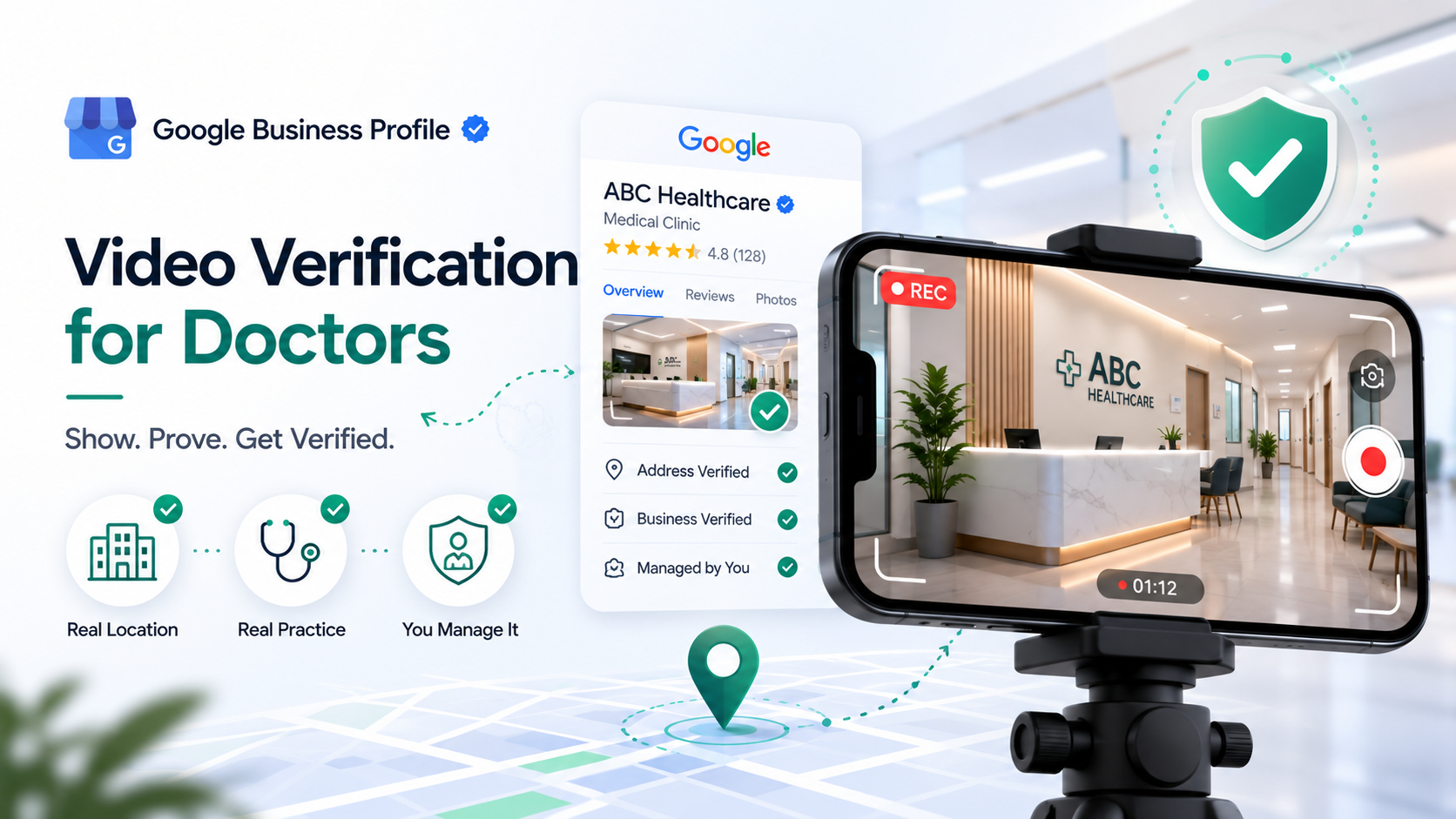
For many medical practices in the US, Google requires video verification. You record a short video showing your practice signage from the outside, your reception or waiting area, and other evidence that you manage the location day to day. Keep supporting documents ready in case Google requests them: practice signage, a recent utility bill at the practice address, and your state medical license.
Other verification methods exist, including postcard by mail, phone, or email, but Google selects the method for each listing, and medical and healthcare categories are frequently routed to video verification specifically. [STAT NEEDS SOURCING: current percentage of medical listings requiring video verification].
Verification can occasionally stall or get rejected, often due to a mismatch between the address on file and what appears in the video, or missing signage. If your verification is delayed or denied, read what happens if verification stalls before resubmitting, since resubmitting with the same issue usually produces the same result.
For a closer look at the verification step itself, including how to record a video Google is more likely to accept the first time, see our dedicated guide.
Step 4: Add hours, services, and photos
Once verified, the remaining fields are what turn a bare listing into a complete profile.
Hours. Set your regular hours precisely, and add holiday hours ahead of major US holidays rather than after the fact. Incorrect hours are one of the most common reasons patients arrive to a closed office, and they erode trust in the listing quickly.
Services. List every service you provide as a distinct entry rather than folding them into one general description. A practice offering both general checkups and a specific procedure should list both by name, since patients and Google both search by specific service terms.
Description. Write a factual business description in your own words: your specialty, the conditions you treat, and what sets your practice apart. Avoid clinical claims you cannot support and keep the tone plain rather than promotional.
Appointment link and website. Add a direct link to book an appointment if your practice has one, along with your website URL. A working appointment link reduces friction between a patient finding you and actually booking.
Photos. Add clear photos of your practice exterior, signage, reception, and consultation areas. Profiles with photos generally draw more attention than profiles without them. Never show identifiable patients without written consent, and never use photos to imply a treatment outcome, which keeps your listing compliant by default.
Step 5: Avoid these common setup mistakes
A handful of errors show up repeatedly across doctor profiles, and each one is simple to fix once you know to look for it.
- Choosing a category that is too broad. "Doctor" instead of your actual specialty weakens relevance for the searches that matter most.
- Letting hours go stale. Especially around US holidays, when a wrong hour costs a patient a wasted trip.
- Leaving the profile unclaimed. An auto-generated listing with no owner behind it cannot be corrected quickly if information is wrong.
- Using a personal Google account. Ownership becomes fragile if that staff member leaves the practice.
- Skipping services. A profile with no services listed gives Google, and patients, less to match against.
- Ignoring verification prompts. An unverified profile is treated as unconfirmed and shown less often.
- Inconsistent name, address, and phone details. Any mismatch with your website or other directories undermines the trust Google places in the listing.
Your Google Business Profile setup checklist
Use this as a working checklist during setup or when auditing an existing profile.
- Claim or create your profile using a practice-owned Google account.
- Enter your practice name, address, and phone number exactly as they appear elsewhere online.
- Choose the most specific primary category available, and add accurate secondary categories.
- Complete verification, keeping signage, a utility bill, and your license ready if requested.
- Set accurate regular hours, and add holiday hours in advance.
- List every service you provide as a separate entry.
- Write a factual, specific business description.
- Add a working appointment link and your website URL.
- Upload real photos of your exterior, signage, and interior, with no identifiable patients.
- Review the full profile every few months for drift in hours, services, or categories.
If you want a scored starting point rather than working through this alone, the Free Audit at The Doc Mirror lets you check your current profile completeness in about 90 seconds, with no signup for the free score.
Conclusion
A complete, verified Google Business Profile is the foundation for how patients find a US medical practice on Google, and it is entirely within a doctor's control to set up correctly. Getting the category, verification, hours, and services right the first time saves the back-and-forth of fixing a rejected or incomplete listing later. Once your profile is set up, the ongoing work shifts to earning reviews and keeping details current, covered in our local SEO for doctors guide.
Run your Free Audit at The Doc Mirror to see where your current profile stands before you make changes.
By the The Doc Mirror team
Internal Links
| Target page | Anchor text used | Reason |
|---|---|---|
| /resources/local-seo-for-doctors (blog 13) | local SEO for doctors | Routes readers who finish the setup guide to the ranking-factors pillar (blog 13) once their profile is built, connecting setup mechanics to ongoing ranking strategy. Used twice: once in the intro to frame the relationship between the two pages, and once in the conclusion as the natural next step. |
| /resources/gbp-video-verification | the verification step | Sends readers who need a deeper walkthrough of recording a video Google is likely to accept to the dedicated verification guide, since Step 3 here only summarizes the process. |
| /resources/unverified-google-business-profile-clinic | what happens if verification stalls | Directs readers who hit a verification rejection or delay to the troubleshooting page, rather than duplicating that content inside the setup guide. |
| /audit (Free Audit CTA) | check your current profile completeness | Converts readers finishing the checklist section into a Free Audit signup, giving them a scored starting point after completing manual setup. |