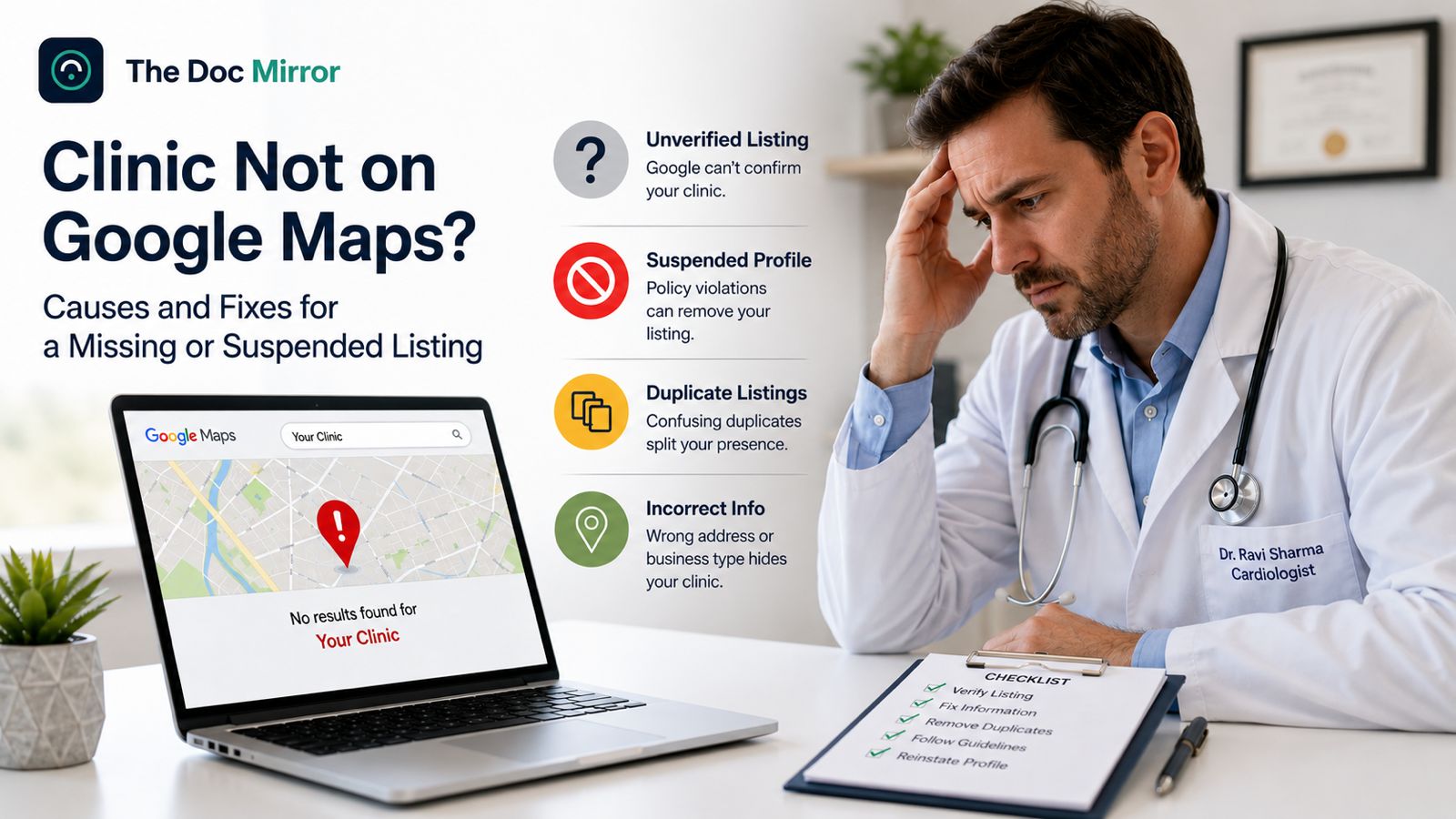
If your clinic does not appear on Google Maps at all, the cause is almost always a technical fault with the listing itself: it is unverified, duplicated, suspended, or set up as the wrong type of business. Google Maps only shows listings it can verify and trust, and each of these faults blocks that trust in a different way. This article covers the map-specific failures that make a profile vanish and how to correct each one, including how to reinstate a suspended profile. Your Google Business Profile is worth up to 30 points in a visibility score, so a listing that is invisible on Maps is the highest-impact thing to fix first.
One distinction matters before you start. This guide is about a listing that is missing or blocked, not one that appears when patients search but ranks too low. If your profile shows up for your specialty and city yet sits below competitors, that is a ranking problem covered in why your clinic doesn't show up when patients search nearby. If your profile does not surface at all, even by exact name, read on.
First, identify which failure you have
"Not on Maps" describes several distinct problems, and the fix depends on which one you have. Run these checks before you change anything.
- Search your exact clinic name in Google Maps. If nothing appears, the profile is missing, unverified, or suspended.
- If a listing appears but is marked "unverified" or you cannot edit it, verification is the issue.
- If two or more listings appear for the same clinic, you have duplicates.
- If a profile that used to exist has disappeared, it may be suspended or disabled.
- If the listing appears but the map pin drops in the wrong place, or your address is hidden when it should not be, you have a location or business-type setting error.
Knowing which of these you face saves hours. The sections below map to each one.
Failure 1: The listing is unverified
An unverified Google Business Profile is shown far less often on Maps, and often not at all, and you cannot fully edit it. Verification is Google confirming that you represent the practice at that address.
For medical practices, Google increasingly requires video verification, where you record a short clip showing your signage, your space, and evidence that you manage the location. Google normally reviews the video within a few business days. Have your practice signage, a utility bill, and your state license ready in case Google asks for additional proof. Do not skip this step, because an unverified listing will keep underperforming no matter how complete the rest of the profile is.
Failure 2: The listing does not exist yet
If no profile exists, patients searching Maps for your specialty will not find you there. Create one while signed in to your Google account through Google Search or Google Maps. Enter your exact practice name, address, and phone number, written the same way as on your website, Healthgrades, and Zocdoc, then complete verification.
If an old guide tells you to download the "Google My Business" app, it is out of date. Google retired that app in 2022, and you now manage everything through Google Search, Google Maps, or the Business Profile dashboard.
Failure 3: Duplicate or conflicting listings split your presence
Duplicate profiles are common, especially when a clinic moved, rebranded, changed ownership, or was auto-generated by Google years ago. Duplicates split your reviews and confuse Google about which listing is real, and that confusion often keeps both out of the Maps results.
Search your clinic name, your old name, and your address to surface every version. Report the duplicate from within your profile so Google can merge or remove it, and keep only the verified, accurate listing. A related trap is two listings at one address for a group practice: Google allows a separate profile for each individual practitioner who is public-facing and a separate profile for the practice itself, but the details must be distinct and accurate, or they read as duplicates.
Failure 4: The profile was suspended or disabled
A suspension removes your listing from Maps entirely, and it almost always follows a guideline breach. The two most common causes for doctors are a keyword-stuffed business name, such as "Dr. Smith Best Cardiologist Austin," and an address that does not meet Google's rules. Google's guidelines for representing your business state that your name must be your real-world name without added marketing terms, so a stuffed name is a frequent trigger.
To recover, follow Google's process for fixing suspended or disabled profiles:
- Correct the underlying breach first. Change a stuffed name back to your real practice name, fix the address, and make sure every field follows the guidelines.
- Open the Business Profile appeals tool, sign in with the account that manages the profile, and submit one reinstatement request.
- Attach evidence when the form asks, such as your practice signage, a utility bill, your business registration, and your state license. Make sure the name and address on the documents match the profile exactly.
- Wait for the decision, which can take up to about five business days.
Do not create a new profile for the same clinic while an appeal is under review, and do not submit repeated requests before you have fixed the cause, since both slow the process. If a request is denied, you can provide additional evidence for a further review rather than starting over.
Failure 5: Pin placement and service-area settings
Sometimes the listing exists and is verified, but a location setting keeps patients from finding it where they expect. Two settings cause most of this.
The map pin, the marker Google drops for your practice, should point to your customer entrance. If it lands on the wrong side of the building, a different building, or an empty lot, patients get bad directions and Google may associate your listing with the wrong spot. You can correct it in your profile under the business location settings by dragging the pin to the exact entrance, then saving. Google's guidance on managing your business address covers this and notes changes can take some time to appear.
The second setting is business type. A storefront clinic that patients visit should show its full street address. A service-area business, one that travels to patients and does not see them at a base address, should hide the street address and list a service area instead. Getting this backward causes trouble: a visited clinic that hides its address can drop off Maps for local searches, while a home-based practice that shows a residential address can be suspended. Google advises that a service-area profile keep its stated area within roughly a two-hour drive of the base. Set the type that matches how patients actually reach you.
A note on AI: the same profile feeds AI answers
A listing that is missing from Maps is usually missing from AI answers too. When a patient asks ChatGPT, Gemini, Claude, or Perplexity for a doctor, those tools name one to three practices using directory data, schema, and citations, and Google's own Gemini draws directly on Business Profile data. Getting your profile verified, unduplicated, and correctly located is the same foundation that lets an AI assistant find and name your clinic.
How to check and fix this week
You can diagnose the technical faults in under 30 minutes, no vendor required.
- Search your exact clinic name in Google Maps, then search "your specialty near me" in an incognito window. Note whether you appear in each.
- Confirm the profile is verified, and start video verification if it is not.
- Search your name, old name, and address for duplicates, and report any you find.
- If a profile vanished, identify the guideline breach, fix it, and submit one reinstatement request with proof.
- Check the map pin sits on your entrance and that your business type matches how patients reach you.
If you want the full picture, the Free Audit at thedocmirror.com checks your Google Business Profile pillar and directory consistency, and compares you to your top local competitors, in about 90 seconds with no signup for the free score.